


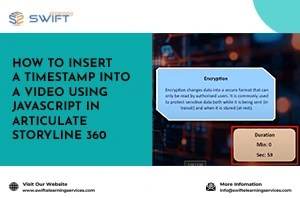
Step 1: Open the Project and Select the Video Slide
● Open the course in Articulate Storyline 360
● Navigate to the slide that contains the video
● Confirm the video is already inserted and set to play on the timeline
Step 2: Create Timestamp Variables
Next, create timestamp number variables to track the video playback time.
1. Open the Variables panel
2. Click the + icon
3. Create a variable named VideoMinutes
● Type: Number
● Default value: 0
4. Click the + icon again
5. Create a second variable named VideoSeconds
● Type: Number
● Default value: 0
These variables store the current video playback time.
Step 3: Display the Timestamp on the Slide
Now,
● Insert a Text Box on the slide
● Add both variables to the text box
● Format the text to display minutes and seconds
This displays a visible timestamp in minutes-and-seconds format.
Step 4: Insert the JavaScript Code
Next, add a JavaScript trigger.
● Paste the provided JavaScript code into the editor
Important:
Ensure the variable names in the JavaScript code exactly match the Storyline variables.
● Click OK to save the script
Step 5: Preview the Course
● Preview the slide or the entire project
Confirm the following:
● The timestamp updates in real time
● Minutes and seconds change as the video plays
● The display remains smooth and synchronised with the video
This confirms the JavaScript is working correctly.
[Disclaimer: The content in this RSS feed is automatically fetched from external sources. All trademarks, images, and opinions belong to their respective owners. We are not responsible for the accuracy or reliability of third-party content.]
Source link


