
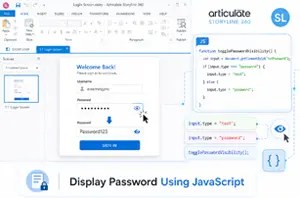
Step 5: Run the JavaScript
Create a trigger to Execute JavaScript when the timeline starts.
Open the JavaScript editor, paste your script and click OK.
const input = document.querySelector(‘.acc-textinput’);
let rawValue = getVar(“UnencryptedPassword”) || “”;
input.addEventListener(“keydown”, function(event) {
const key = event.key;
let maskedValue = getVar(“EncryptedPassword”) || “”;
const navigationKeys = [“ArrowLeft”, “ArrowRight”, “ArrowUp”, “ArrowDown”, “Tab”, “Enter”, “Home”, “End”];
if (navigationKeys.includes(key)) {
return;
}
event.preventDefault();
if (key === “Backspace” || key === “Delete”) {
rawValue = rawValue.slice(0, -1);
} else if (key.length === 1) {
rawValue += key;
}
maskedValue = “*”.repeat(rawValue.length);
input.value = maskedValue;
setVar(“EncryptedPassword”, maskedValue);
setVar(“UnencryptedPassword”, rawValue);
});
The script automatically performs the following tasks:
● Reads the hidden password field
● Converts the value into plain text
● Updates the UnencryptedPassword Storyline variable
● Keeps the variable synchronized as the learner types
This allows Storyline triggers to work with the password just like any other text variable.
The JavaScript reads the hidden password entered by the learner and stores it in another Storyline text variable as plain text.
[Disclaimer: The content in this RSS feed is automatically fetched from external sources. All trademarks, images, and opinions belong to their respective owners. We are not responsible for the accuracy or reliability of third-party content.]
Source link
